
 Facebook
 X
X LinkedIn
 Forward
Welcome, RSS Coordinators!
Welcome to the new RSS Coordinator Resource Page! This is your guide to working in the RSS Module in Ethos!
- RSS TEMPLATES
- Event ID Slide_UPDATED Feb 2026
- Event ID Slide_UPDATEDw/ QR CODE Feb 2026
- RSS Announcement
- RSS DTL (Disclosure to Learn)
- FOR REFERENCE
RSS Activity Process Overview
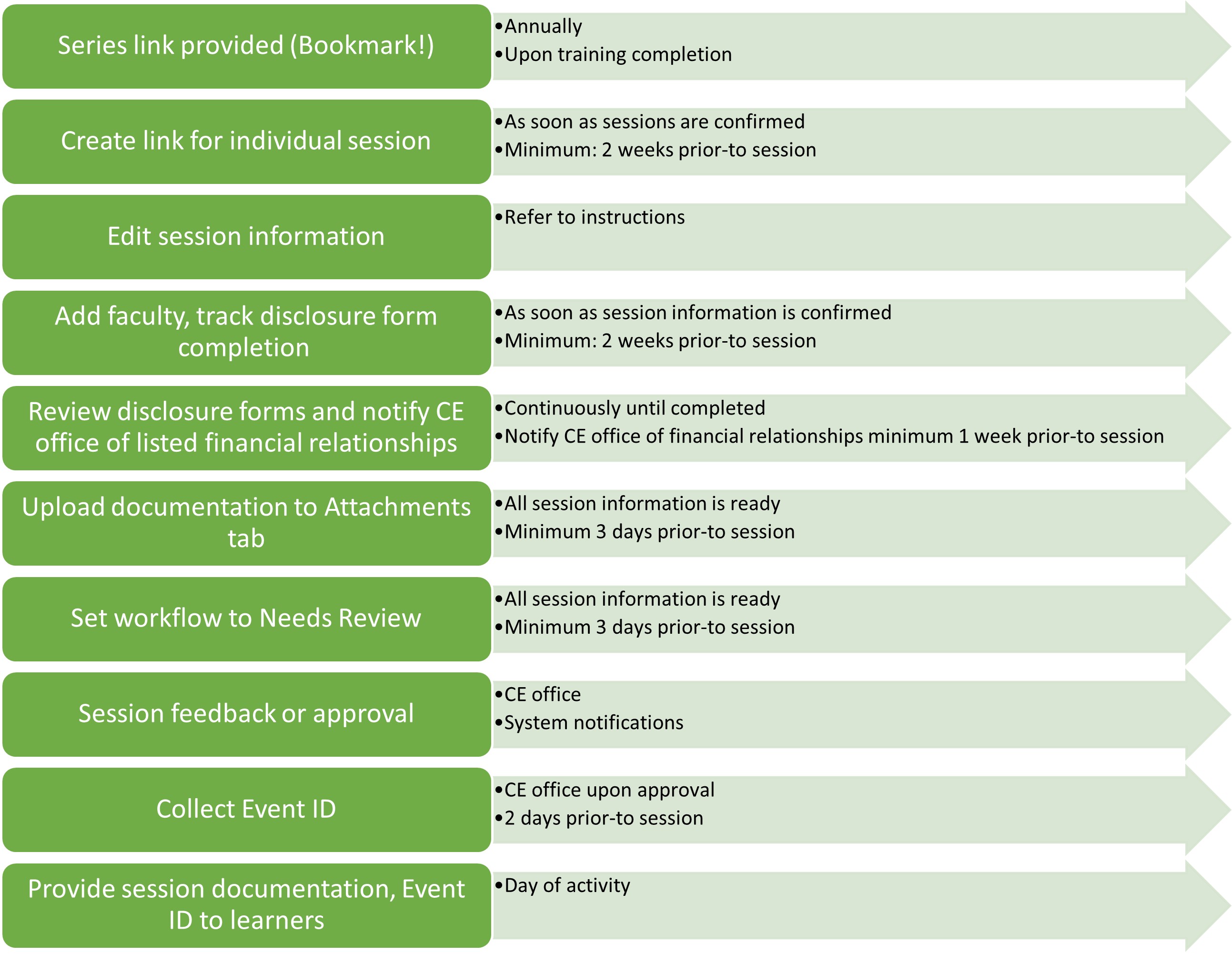
Add faculty to Faculty List, Track Disclosure Form Completion
- Add session faculty to faculty list once session information is confirmed
- Anyone contributing to the educational content of the session: Speakers, course directors, peer reviewers, moderators, planning committee members
- Return to faculty list to review for disclosure completion
- Disclosures dated within 1 year of the activity date
Reviewing the Faculty List
Faculty list issue | What does this tell you? | What do you do next? |
|---|---|---|
No faculty list appears | Session faculty haven't been added | Make sure to add session faculty as soon as you get the course link to populate the faculty list |
No name | No profile | 1) Create profile 2) If email doesn't match, they will get an error: Re-add them to faculty list 3) Complete disclosure form |
No date | No disclosure | Complete disclosure form |
Dated before 02/12/25 | Disclosure needs updating | Update disclosure form |
Do they have any Financial relationships? | You won't know until you click on their name to view the disclosure tab in their profile! | 1) Click on name in faculty list 2) Review disclosure tab 3) Notify CME program coordinator of financial relationship listings 1 week before conference |
COMPLETING DISCLOSURE FORMS
Ethos will send a system-generated email. This sometimes gets sent to junk or ignored. Follow up with an email with these steps:
If they need to create a profile:
CREATE AN ACCOUNT
- Select "Register" from the top-right corner of the homepage or go to https://cme.utsouthwestern.edu/user/register
- Enter the required information and select "Create new account"
- Check your e-mail for your password to complete registration
If they need to complete or update disclosure form:
DISCLOSURE
To update your disclosure:
- Log in to your cme.utsouthwestern.edu profile
- If you do not recall your password, you can request a new one at this link: https://cme.utsouthwestern.edu/user/password
- Go directly to your disclosure form here: https://cme.utsouthwestern.edu/my/edit/disclosure
- Review the information for accuracy/current status
- Hit SAVE at the bottom of the page.
Review disclosure form for listed financial relationships
- IMPORTANT: Review disclosure information in their profile:
- Click on name in faculty list
- View “Disclosure” tab
NOTIFY THE CME OFFICE OF ANY REPORTED FINANCIAL RELATIONSHIPS/POTENTIAL CONFLICTS OF INTEREST via email AT LEAST 1 WEEK PRIOR TO THE SESSION
CE Office proceeds with review, next steps
Transcribe financial relationship listings to DTL table
Provide Announcement, DTL, and Event ID to Learners (Day of Session)
Event ID resources (Text to Sign-in)
- Event ID Slide_UPDATED_Feb. 2026
- Event ID Slide w/ QR Code_UPDATED_Feb. 2025
- Virtual meeting chat messages: (Insert the unique Event ID for the session). We suggest posting at login, mid-way and at the end of your session.
- TEXT <Event ID> to 972-573-8343 or log in and enter at cme.utsouthwestern.edu/code to receive CME or attendance credit for this session. NOTE: Event ID is only valid the day of the session
- Mobile Sign-in Help Page for further assistance https://cme.utsouthwestern.edu/guide/sign-in-methods
- Includes confirmation messages and responses!
- Online option: Alternatively, attendance can be recorded online through your desktop or mobile web browser by going to cme.utsouthwestern.edu/code (you must be signed into your cme.utsouthwestern.edu profile to access)
- Technical assistance: If you or your learners have any questions, email your assigned program coordinator
- NOTE: Please sign in for RSS activities, even if you are not claiming CME or CE credit. Attendance verification is required by UT Southwestern Medical Center to ensure institutional accountability, accurate participation records, and program integrity. It is also an ACCME requirement to maintain compliance, audit readiness, and continued recognition of UTSW's accredited continuing education program.
Resources
Guides
- Setting Up an Ethos Profile:
- Running Attendance Reports:
- Reach out to your assigned CE Coordinator and request a Dashboard Enrollment Report (please include specific date range)
Specialty Credit Requests:
Contact your assigned CME Program Coordinator with any questions in-advance
- MOC
- Ethics
- Opioids
Working with CME course faculty
CME Transcripts
Transcripts from 2014-present are available for learners online at cme.utsouthwestern.edu. If they cannot recall their password, they can request a password reset at this link: https://cme.utsouthwestern.edu/user/password